Checking Room Availability
The General Availability screen allows users to search for available rooms in the property.
Breakpoint: 50015 - General Availability (Front Office - Reservation)
The filters pane helps users to filter room records based on reservation type and sort rooms based on room type groups and arrival or departure date.
The General Availability screen provides users a comprehensive view of the availability of all room types for each day of stay in the property. Users can select the preferred room types and perform a comparison of the available tariffs, packages, and restrictions applied for the room types in the selected date range all in a single screen. For example, if a user has performed a room availability search for 5 days starting from11/06/2022 to 11/11/2022, the available tariffs and packages are displayed for dates 11/06/2022 to11/11/2022.
In the Tariff and Rate Availability section, all available tariffs and packages for the selected room type will be displayed as individual tiles for the selected date range. If restrictions have been applied to a tariff belonging to a room type, a red line mark will be displayed on the left side of the tile. When a user clicks on the tile, details of the applied restriction, the deposit and cancellation policy applied to the tariff in the reservation, if any, will be displayed. For packages, a breakdown of the room rate and taxes included will be displayed.
Perform the following steps to view room rates and their availability:
Navigate to Reservations à Rate & Availability Calculator.
Refer to the following table and fill in the fields:
|
Field |
Description |
|---|---|
|
Property |
Select a preferred property for which the room availability must be checked. Users can select multiple or all property codes to be displayed in the grid once the Process button is clicked. When users select multiple properties from the drop-down list, the grid will organize all room types corresponding to the selected property codes. |
|
Building |
Select a preferred building for which the room availability must be checked. The drop-down list displays the property code along with the building name in the following format: (Property Code) - Building Name. This list will appear only if the Building option is selected in the Filter By section. |
|
Room Type Group |
Select a preferred room type group for which the room availability must be checked. The drop-down list displays the property code along with the room type group name in the following format: (Property Code) - Room Type Group Name. This list will appear only if the Room Type Group option is selected in the Filter By section. |
|
Reservation Type |
|
|
Available |
When selected, all available rooms in the property for the selected date range will be displayed. |
|
Sold |
When selected, all sold rooms in the property for the selected date range will be displayed. |
|
Show |
|
|
Group Details |
When selected, rooms associated with groups will be displayed. |
|
Arrivals/Departure |
When selected, number of rooms where guests have arrived and checked out will be displayed. |
|
Non Bedded Room Type |
When selected, non-bedded rooms will be displayed. |
|
Rates |
When enabled, the Tariff & Rate Availability section will be displayed in the General Availability screen. By default, this flag is enabled. |
|
Start Date |
The arrival date of the guest. |
|
End Date |
The departure date of the guest. |
|
Nights |
The number of nights of stay. |
|
Adult |
The number of adults in the guest reservation. |
|
Youth |
The number of youth guests in the reservation. |
|
Full Child |
The number of children who are not eligible for discount in the reservation. |
|
Disc Child |
The number of children who are eligible for discount in the reservation. |
|
Toddler |
The number of toddler guests in the reservation. |
|
Senior Citizen |
The number of senior citizens in the reservation |
|
Filter By |
Available options include the following:
|
|
Rate Available |
Select the preferred option based on which the room types are filtered. The available options are Rate and Tariff Availability |
|
Tariff |
The tariff rates for the different rooms at the property. |
|
Display Type |
Select the preferred display type. The available options are Restricted Rates and Tariff Availability. |
|
Scheme Type |
Select the preferred scheme type. The available options are Rate Surcharge and Tariff Restriction. |
|
Occupancy % |
The adjusted tariff according to the occupancy rate of the rooms. |
|
LOS Days |
The adjusted tariff according to the length of stay. |
|
Adv Days |
The tariff adjusted based on the booking date, which is in advance to the arrival date. |
|
No. of Nights |
The total number of nights for which the booking has been made. |
|
Room Type |
The code to identify the room type / The booked room type: King Smoking, Governor Suite, Valley View, and so on. |
|
Average Rates |
The average rate of all nights. |
|
Total All Nights |
The actual amount in total of all nights. |
General Availability Screen
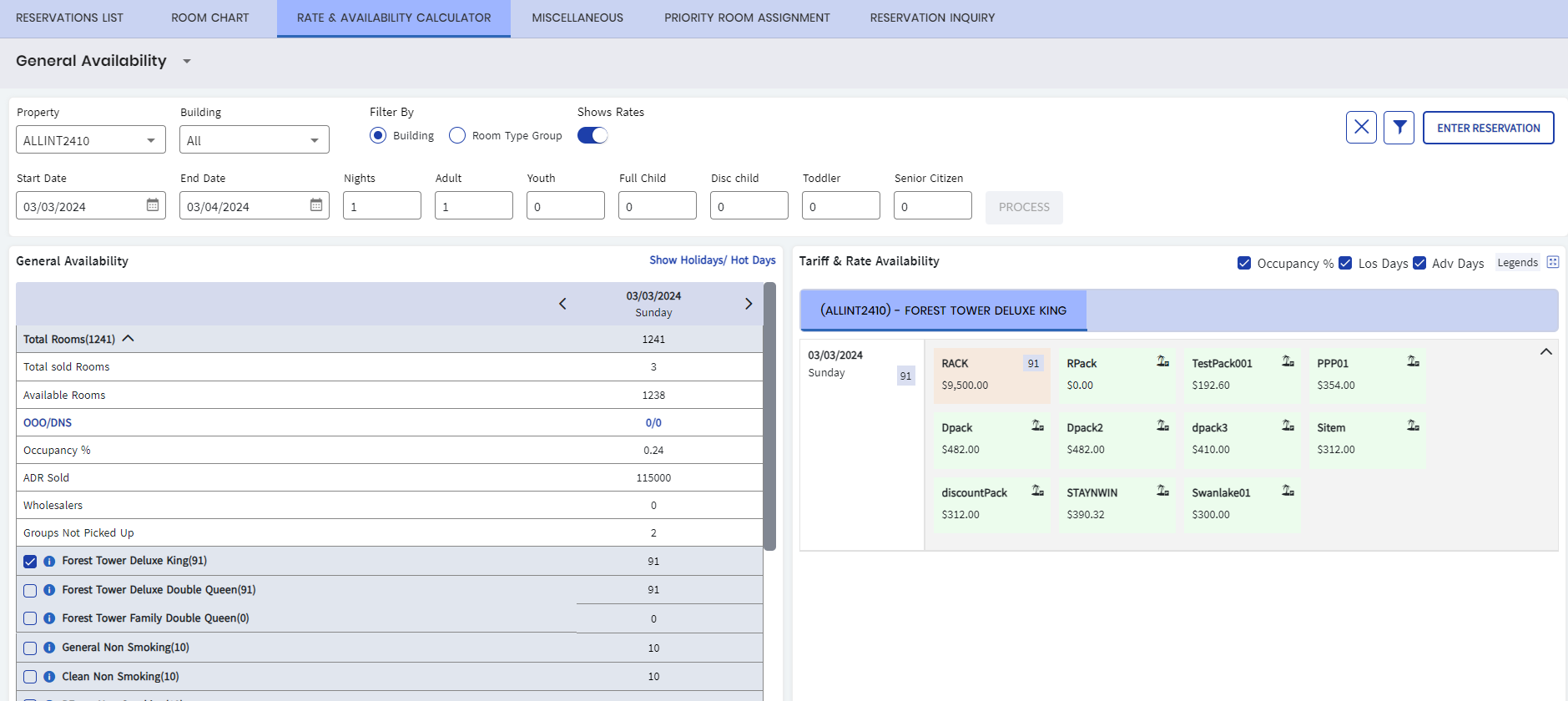
The General Availability section on the screen will display all the room types based on the search criteria. If a room type is selected, the Tariff and Rate Availability section will display all the rates configured for the tariff associated with the room type.
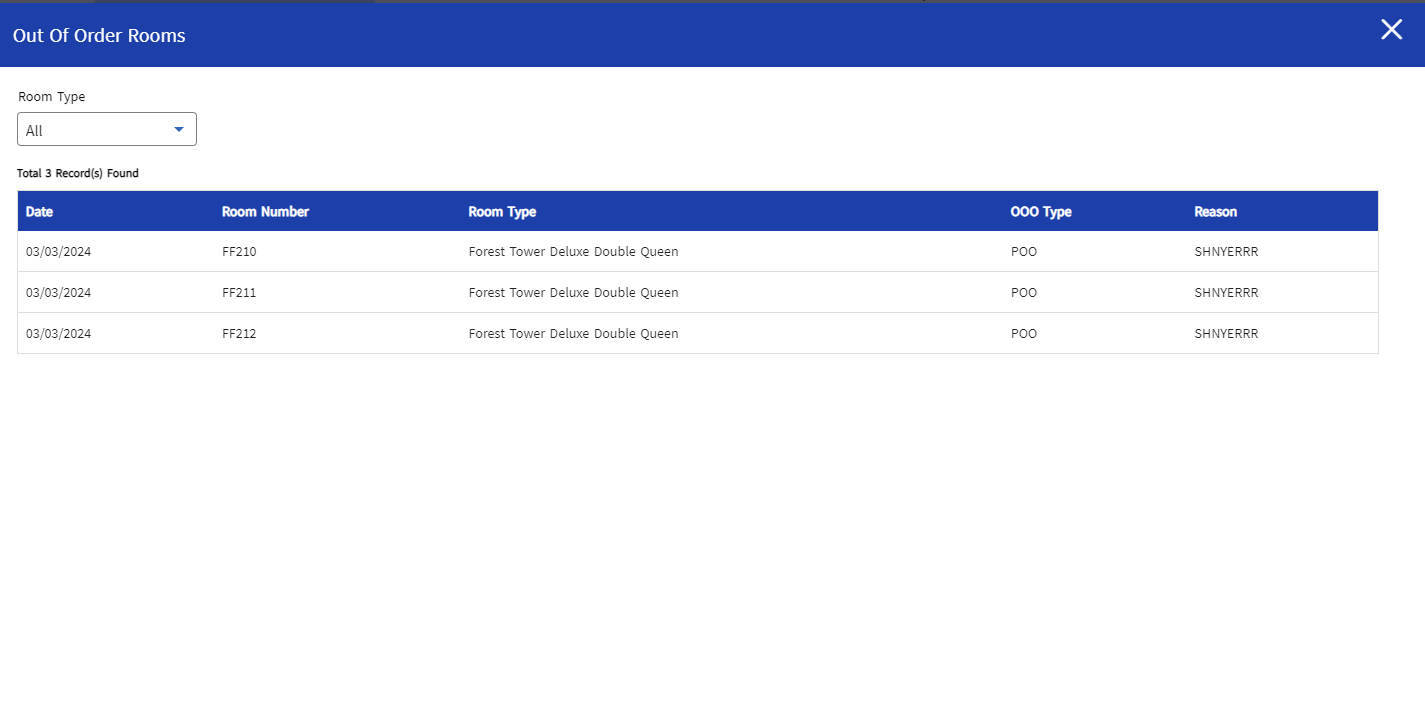
In the General Availability section, if the user clicks OOO/DNS, the Out of Order Rooms pop-up window appears. Users can filter the out of order rooms to be displayed in the grid by room type using the Room Type drop-down list. By default, the All option is selected.